Intro
This tutorial we will setup your Raylib-go dev environment and create a project which will produce a blank window. In a Windows 11 environment. The setup on Linux and Mac are well described on the raylib site. Windows requires extra effort to set up a C compiler but has a very simple method of using the raylib-dll. We will use this method to get you started as quickly as possible.
Requirements
- You need Go installed ~ the newest version is often a good idea, then stick with that untill you are comfortable. You can get it from GO.DEV downloads
- A text editor or an IDE. VSCode, Goland, Notepad
Install Go & VSCode
- Go to GO.DEV downloads follow the instructions to download and install for your system.
- install VSCode with the Go extension - you need to search for the extension from within the vscode application
(No CGO - I use the other method later)
- The Raylib dll from the Raylib Releases Page. Get one of the Win64 zip files from the 5.5 or higher release and extract. the dll will be in one of the folders.
Create a new project folder
I often create a Dev (develop or projects or source) folder under my HOME folder and place my projects in there.
In your Dev folder:
- create a folder called mygame you can use file explorer.
- go into that folder and create a file and rename it to main.go (Windows folders in File Explorer require the extentions to be on. View/Show/enable file extentions)
Here are the CMD (command line) instructions. Run from the home directory
|
|
From now on commands are run from the ‘project’ folder we called mygame
NOTE:
Windows 10/11 has a new Terminal and a new Powershell 7
They are useful and can be found in the microsoft store.
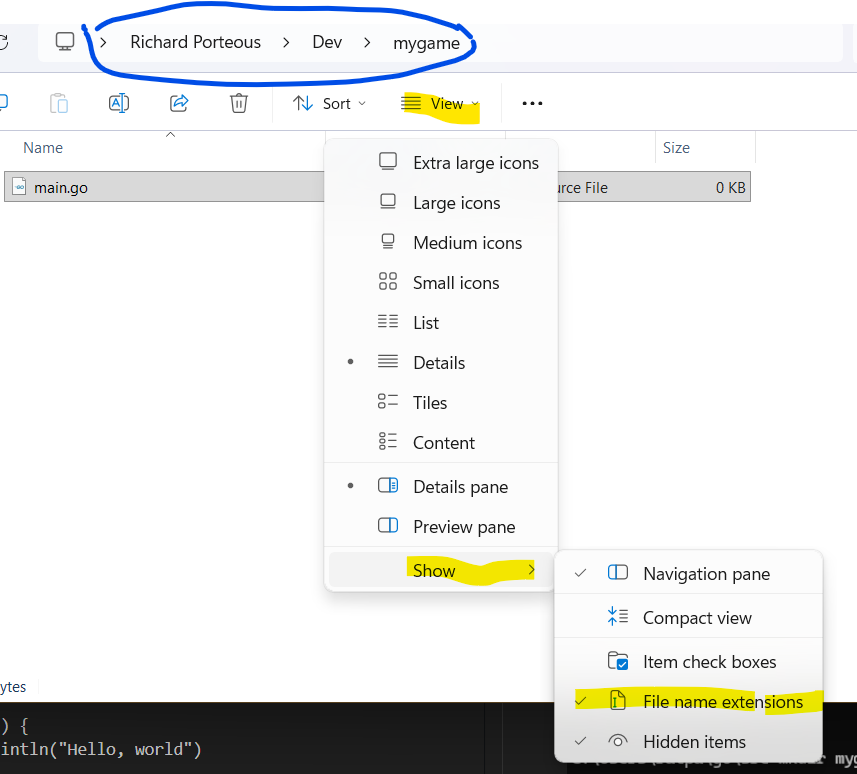
using a text editor like notepad or IDE like VSCode
- edit main.go and add the following (remove "" if its at the top of the file)
|
|
We can run this short app using this terminal command
|
|
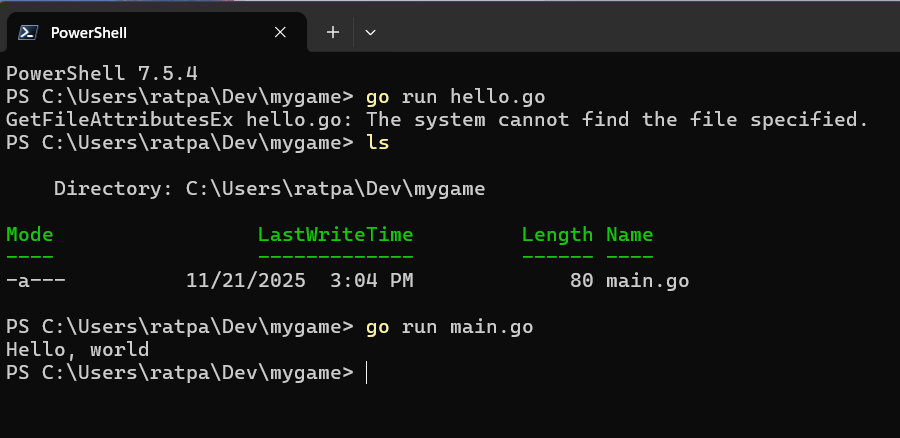
Go uses mod files to tell the go compiler what files it needs. i.e. project stuff
|
|

running the new exe will produce the same output
Install Raylib
Windows NO cgo instructions:
We will use cgo another time, for now download raylib if not already.
-
click on the release title (i.e. RayLib 5.5 takes you to https://github.com/raysan5/raylib/releases/tag/5.5)
-
scroll down to the bottom of the page and select the zip file for your system
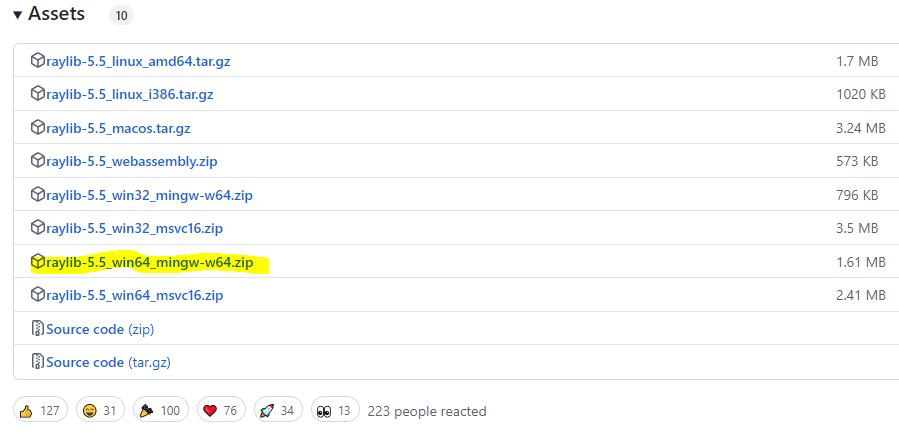
- Download the file
- open it (windows can look in zip files)
- go ito the various folders until you find the raylib.dll file
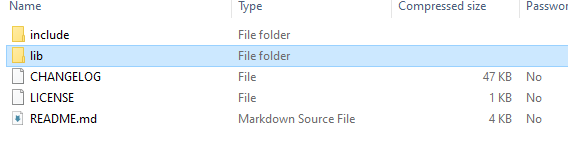
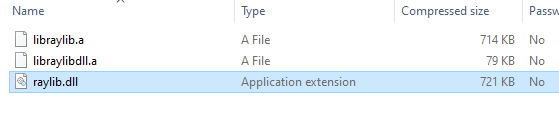
extract it and copy it to top level (root folder) of your project i.e. mygame folder
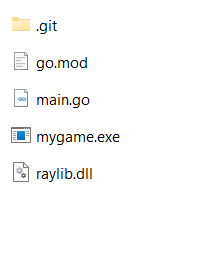
Now type the following (this always give the latest release, but you can specify a version or allow go mod tidy to do it for you)
|
|
This will add a pkg folder with the required files in their respective folders
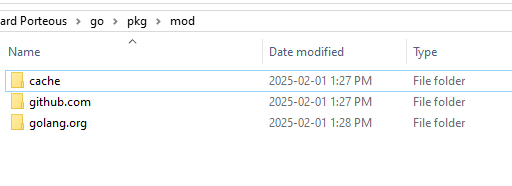
now replace the contents of main.go with the following
|
|
We need to fix the mod file and rebuild
|
|
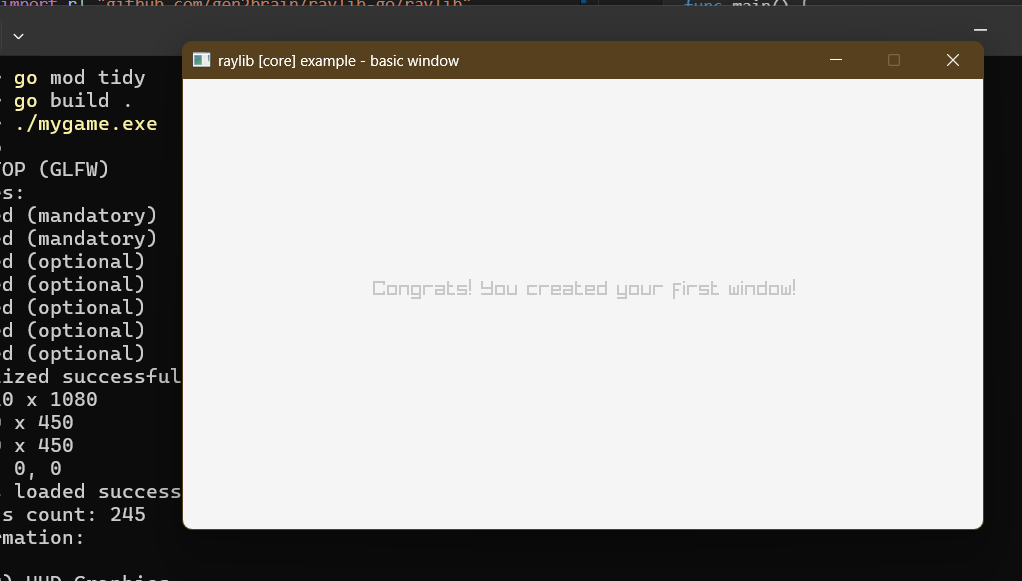
If you get the same results - congrats
if not check the instructions and requirements on the raylib-go site again. Still stuck try the 1st and 2nd videos from the series below
Links
A Video series to build a Animal Crossing style game
Mostly I start with these sites
To Learn Go
- go.dev. The Learn and Docs sections are useful.
- Interactive tour of GO
- [Exercism] (https://exercism.org/tracks/go) for learning computer languages
Useful sites for Game dev
- awesome-go.com follow the game-development link
- raylib-go
- Raylib itself choose your platform
Some Games